
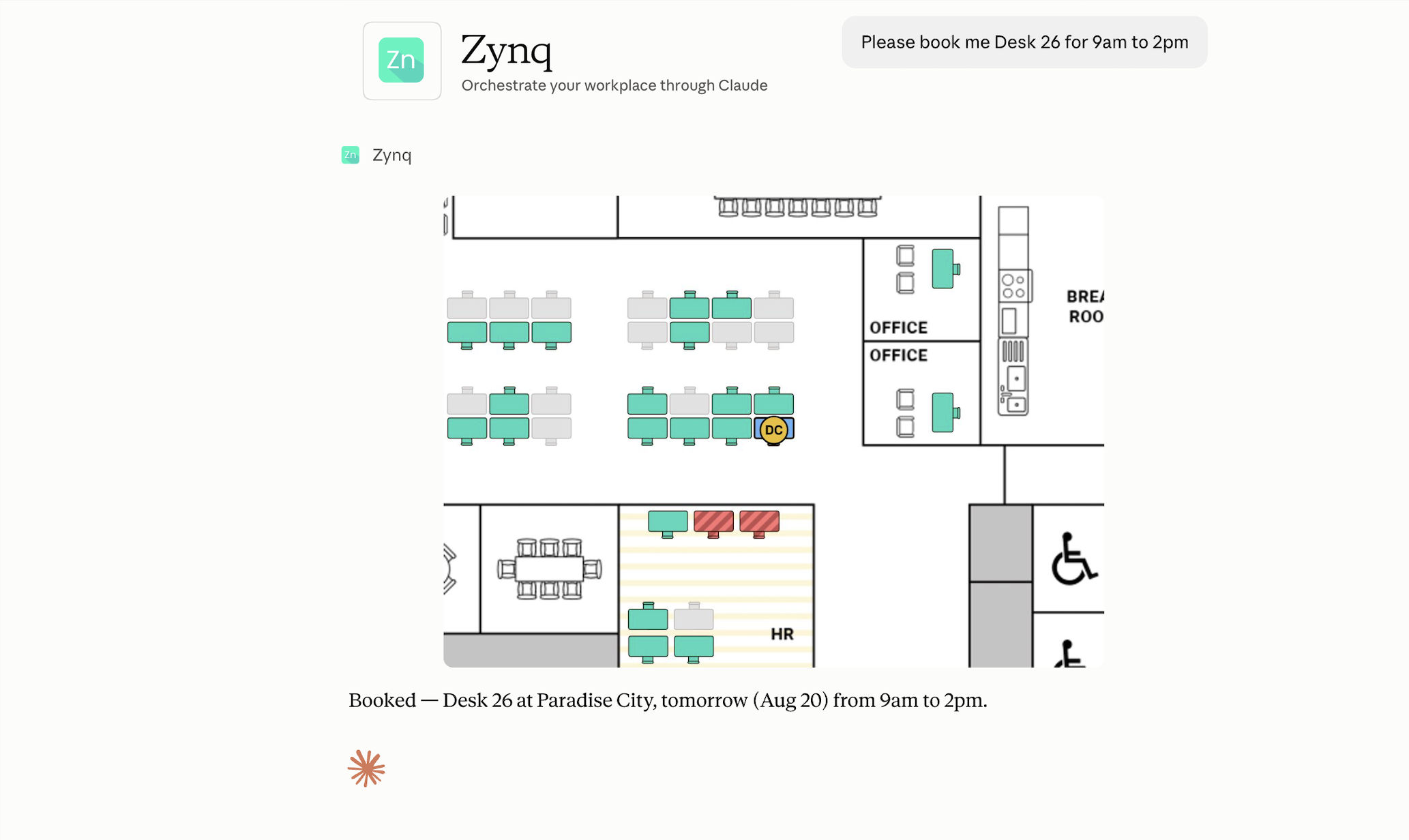
Connect Zynq to Claude and manage your workplace bookings by chatting. Book a desk, review your reservations, and cancel, all in plain language.
For example, you can ask Claude to:
- Book a desk - "I'm coming into HQ tomorrow, please book me a spot."
- Suggest what to book - "Where should I sit at the Paradise office next Thursday?"
- View your reservations - "What bookings do I have this week?"
- Cancel a booking - "Cancel tomorrow's booking"

Claude acts on your behalf, so it can only see and book what you already can in Zynq.
If you're wondering whether something's possible, just ask. Try "What can you help me do in Zynq?" and Claude will walk you through it. We add new capabilities over time, and Claude knows about them as soon as they exist.

How to connect
- Open Zynq in the Claude connector directory. Or in Claude, go to Customize → Connectors, click Add, and search for Zynq.
- Click Connect.
- A Zynq sign-in window opens. Sign in with your usual Zynq credentials.
- Once authorized, the window closes and you're ready to go.
You'll need an active Zynq account and access to Claude.
Need help?
Questions, issues, or feedback? Email us at [email protected].
